The editor
A proper Markdown editor built for worldbuilding — it edits your file's literal text, never mangles your formatting, and gets out of the way.
Source & reading views
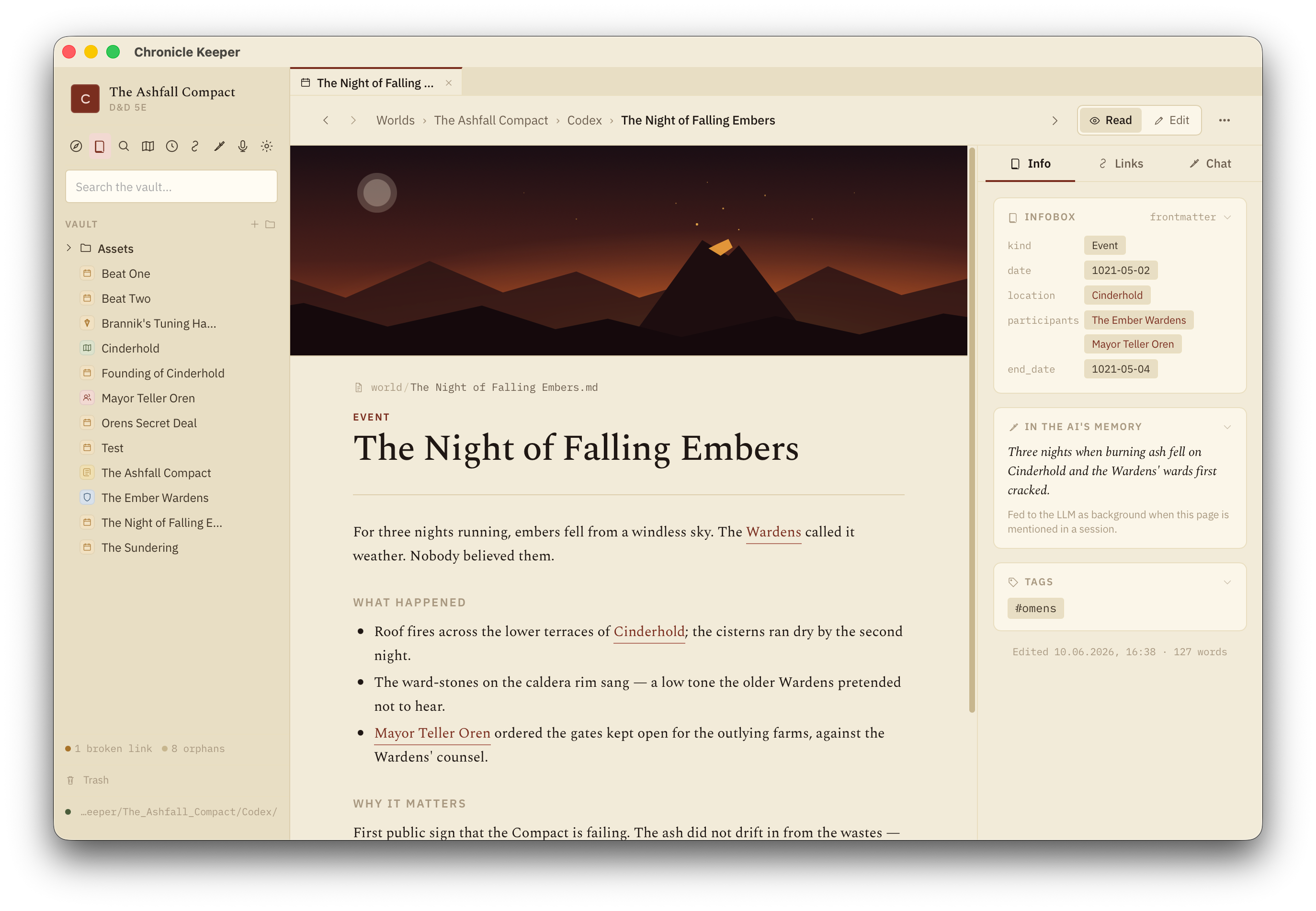
Every page has two faces. The source view is a real code editor (CodeMirror 6) with line numbers, code folding, multi-cursor, ⌘F find-and-replace and Markdown syntax highlighting. Toggle to the reading view for the clean, rendered page — transclusions expanded, callouts styled, images shown. Edits touch only the literal string in your file, so what you write is exactly what's saved.
Writing shortcuts
- ⌘B / ⌘I — bold / italic.
- ⌘L — wrap the selection as a
[[wikilink]]. [[— autocomplete page names and aliases as you type;#autocompletes tags.- Smart lists — bullets, numbers and
- [ ]tasks continue on Enter and out-dent when empty.
The slash menu
Type / at the start of a line for an insert menu: headings, lists, tables, callouts, an /event stub for the timeline, and your own snippets. No need to remember Markdown syntax for the fiddly bits.
Smart paste
Paste does the obvious thing:
- A URL over selected text becomes a Markdown link.
- Spreadsheet cells or an HTML table become a Markdown table.
- An image is saved into
Assets/and embedded as![[name]]— rendered in reading view, with|widthhonoured.
Transclusion
Pull one page (or one section) into another with ![[Page]] or ![[Page#heading]]. The content renders inline in reading view, so you can compose a region overview from its towns, or a faction page from its members, without copy-paste drift. Embeds nest a few levels deep and are cycle-guarded.
Callouts & secrets
Set off asides with callouts:
> [!note] Worth remembering
> The duke's seal is a forgery.

> [!secret]- GM eyes only
> The duke is already dead.
Types include note, tip, warning and secret. A - after the type makes the callout start collapsed (a + starts it open); secrets are collapsed by default, so spoilers stay hidden until you click.
Snippets & quick capture
Reusable blocks live in .ck/templates/snippets/ and appear in the slash menu — a stat block, a shop inventory, whatever you reach for often. And when an idea strikes mid-session, ⌘⇧J quick-captures it straight to your Inbox/ tagged #inbox, ready to promote later.
Selection toolbar
Select text in the editor for a bubble toolbar: format it, turn it into a heading or list, wrap it as a wikilink, extract it to a new page (leaving a [[link]] behind), or send it to the Keeper as a quote to ask about.
Tabs & focus
Open several pages at once in tabs, with the browser muscle memory you'd expect: ⌘-click a link to open it in a background tab, ⌘W to close, ⌘⇧T to reopen, ⌘1–9 to jump, middle-click to close, drag to reorder. Each tab remembers its cursor, scroll and read/edit mode. For deep work, Zen mode strips everything but the page.
Nothing here is a proprietary format. The slash menu, callouts and transclusion all write plain Markdown an Obsidian user would recognise — so your world stays portable no matter what you edit it with.